



Google Drive Privacy: Can Google See Your Files?

Share
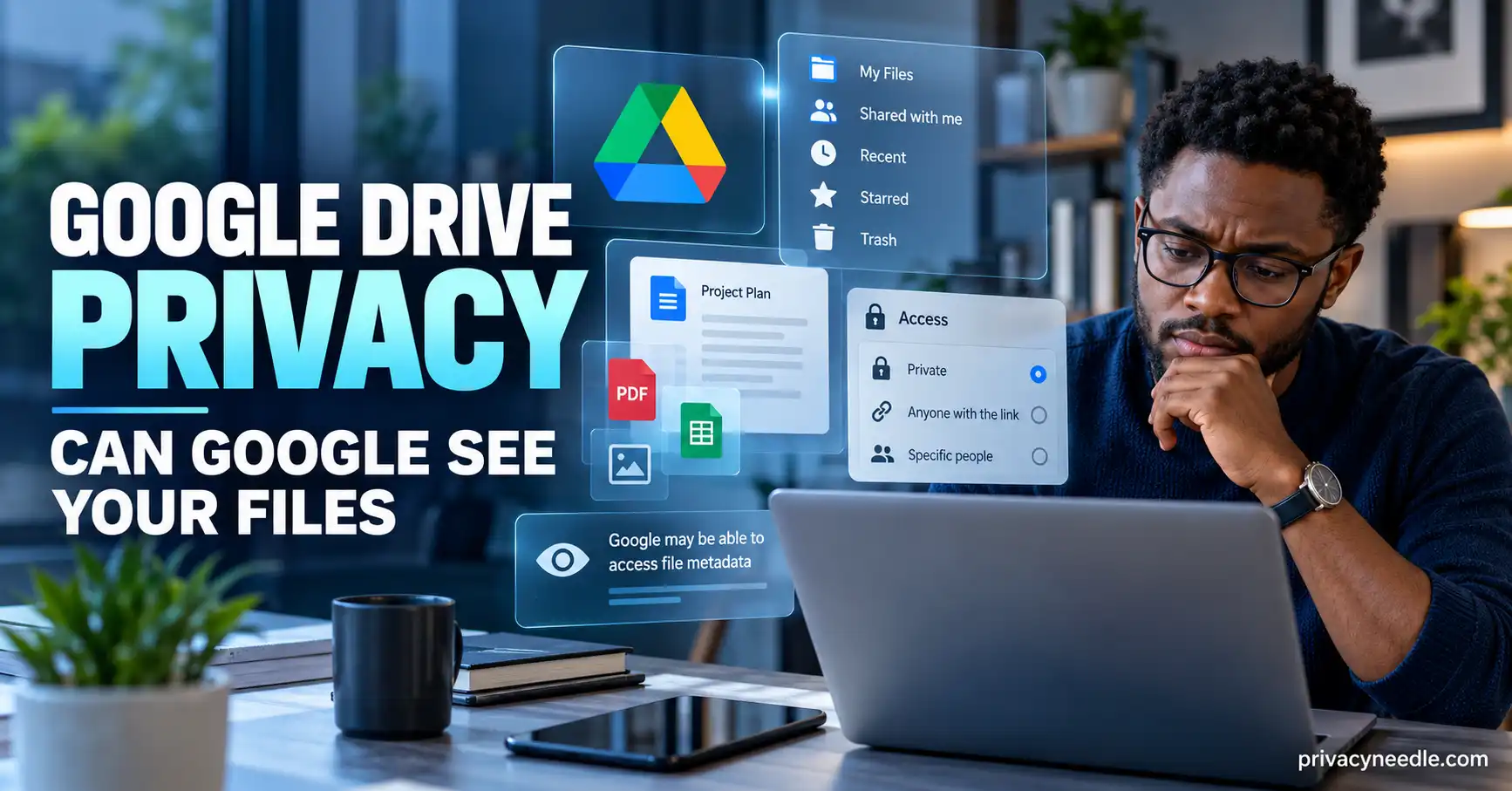
Can Google See Your Files in Google Drive
Google Drive is one of the most popular cloud storage services in the world.
People use it to store everything from ordinary documents and photographs to passports, financial records, business plans, contracts, school assignments, backups and other highly personal information.
That naturally raises an important privacy question:
Can Google see your files in Google Drive?
The answer requires more nuance than simply saying yes or no.
Google says files stored in Drive are encrypted in transit and at rest. It also says that Drive processes content for functions such as spam filtering, virus detection, malware protection and the ability to search for files within your account. Google states that Drive content is not used for advertising.
Google also says that private Drive content is private to you unless you choose to share it and that Google accesses private content only when you give permission or when required by law.
So the real privacy question is not simply whether Google can technically process your files.
It is:
What does Google process, why does it process it, who can access it, and what controls do you have?
That distinction is critical.
This article examines exactly how Google Drive handles your files and where its privacy boundaries are.
Table of Contents
- What Does Google Drive Store?
- Does Google Drive Encrypt Your Files?
- Can Google Scan Your Files?
- Why Does Google Process Drive Content?
- Does Google Use Your Drive Files for Advertising?
- Can Google Employees Access Your Files?
- Can Google See Private Files?
- What Happens When You Share a Drive File?
- Can Other People See Your Google Drive Files?
- What Does Google Know About Your Drive Activity?
- Does Google Store Your Drive Search History?
- What About Google Drive AI Features?
- Is Google Drive End-to-End Encrypted?
- What Is Client-Side Encryption?
- Google Drive for Personal vs Work Accounts
- How to Audit Your Google Drive Privacy
- How to Download Your Google Drive Data
- What Happens When You Delete a Drive File?
- Google Drive vs Google Photos Privacy
- Frequently Asked Questions
- Final Takeaway
What Does Google Drive Store?
Google Drive can store many different types of information.
For example, your Drive account may contain:
- Documents
- PDFs
- Spreadsheets
- Presentations
- Photos
- Videos
- ZIP files
- Text files
- Microsoft Office files
- Scanned documents
- Backups
- Shared files
- Google Docs
- Google Sheets
- Google Slides
- Other supported file types
The privacy implications depend heavily on what you choose to store.
Someone using Drive primarily for school documents has a different privacy risk from someone using it to store financial records, company contracts and identity documents.
Your Google Drive can also contain information that is not immediately obvious from the files themselves.
For example, Google stores information needed to synchronize your account and provide the service. Google says it saves your name and email address to help with sign-in, preferences, syncing files across devices and service updates.
Google also says it saves certain information about Drive searches and some location information associated with the service.
Therefore, your Drive privacy footprint includes more than the files themselves.
Does Google Drive Encrypt Your Files?
Yes.
Google states that files uploaded to Drive are encrypted in transit and at rest.
Google’s current encryption documentation states that files uploaded to Drive, as well as files created in Docs, Sheets and Slides, are encrypted using AES-256 encryption at rest and in transit.
Encryption is an important security layer.
It helps protect data from unauthorized interception while information travels between your device and Google’s systems.
It also protects stored data while it is sitting on Google’s infrastructure.
But there is an important distinction:
Encryption at rest is not the same thing as end-to-end encryption.
With ordinary Google Drive storage, Google operates the systems that provide the service and can process content for functions that Drive provides.
For example, Google says it processes Drive content for spam filtering, virus detection, malware protection and searching files within your account.
That means encryption should not automatically be interpreted as “Google cannot access or process my files.”
Can Google Scan Your Files?
Yes, Google Drive can scan files for security purposes.
Google explains that its security systems can evaluate files for threats such as phishing and malware.
This is important because cloud storage services need to protect users from malicious files.
Imagine someone shares a malicious document with you.
If Drive could never process the file, it would be much harder for the service to provide automated security protections.
Google says Drive uses security systems to detect threats and can block access to files identified as potentially harmful.
Google also notes that Drive scanning has limitations. Its current security documentation states that some file types cannot be scanned and that there is a 100 MB scanning limit for certain scanning processes.
This illustrates an important privacy and security trade-off:
The same ability to process content can provide security benefits while also meaning the service must technically handle the content.
Why Does Google Process Drive Content?
Google says it processes Drive content to provide and improve core features.
Its Drive privacy documentation specifically identifies several examples:
- Spam filtering
- Virus detection
- Malware protection
- Searching for files within your account
- Product performance
- Reliability
- Troubleshooting
- Abuse prevention
- Analysis
The ability to search your Drive is particularly important.
If you type the name of a document or search for a phrase inside your stored content, Drive needs to process information about the files to return useful results.
This is fundamentally different from saying that Google uses the content for advertising.
Google explicitly says Drive does not use content in personal-storage products such as Drive for advertising purposes.
Does Google Use Your Drive Files for Advertising?
According to Google, no.
Google states that it does not use information in apps where you primarily store personal content, including Drive, for advertising purposes.
This is an important distinction because Google operates a large advertising ecosystem.
The fact that Google provides personalized advertising across its services does not mean that your private Google Drive documents are used for advertising.
Google’s published Drive privacy information specifically excludes Drive content from advertising use.
That does not mean Drive does not process your files.
It means Google describes the processing as being for purposes such as providing Drive features, security and reliability rather than advertising.
Can Google Employees Access Your Files?
Google says it respects the privacy of your Drive content.
Its Drive privacy documentation states that Google accesses private content only when it has your permission or is required to do so by law.
That does not mean no Google system can ever process your files.
Automated processing is part of how Drive provides services such as:
- Search
- Malware detection
- Spam protection
- Security
- File organization
- Other product functionality
The important distinction is between automated service processing and human access.
Google’s stated policy is that private content is accessed only with permission or when legally required.
For users concerned about highly confidential information, this distinction should be considered when deciding whether a cloud service is appropriate.
Can Google See Private Files?
Your private Drive files are not publicly visible by default.
Google says the content you save in Drive is private unless you choose to share it.
However, “private” does not mean that the file is completely inaccessible to the service operating the cloud platform.
Drive still needs to provide functions such as:
- Searching
- Security scanning
- Malware detection
- Synchronization
- Storage
- File previews
- Sharing
- Collaboration
Google therefore processes information from Drive as part of providing those services.
The better way to think about ordinary Google Drive is:
Private from other users by default, but processed by Google’s systems to operate and secure the service.
That is more accurate than saying either “Google can freely read everything” or “Google cannot access anything.”
What Happens When You Share a Drive File?
The privacy of a Drive file can change immediately when you share it.
Google Drive allows you to share files with specific people or make them accessible to anyone with a link, depending on the sharing configuration.
You can generally assign different permission levels, including:
- Viewer
- Commenter
- Editor
The owner can control who has access and what they are allowed to do.
This means one of the biggest Google Drive privacy risks can be caused by the account owner rather than Google’s infrastructure.
A file may start as private and later become accessible because someone:
- Shares it with the wrong email address
- Enables “Anyone with the link”
- Adds the wrong collaborator
- Shares an entire folder
- Leaves an old collaborator with access
- Uploads sensitive information into a shared folder
Before storing sensitive information in Drive, understand the sharing model.
Can Other People See Your Google Drive Files?
Not normally.
Google says Drive files are private unless you choose to share them.
But shared files can become accessible to other people.
For example, Google Drive supports:
Restricted access
Only specified people can access the file.
Anyone with the link
People who obtain the link can access the file according to the permissions you set.
Google also allows owners to control whether people can view, comment or edit shared files.
A simple privacy audit should therefore include your sharing settings.
Search through your Drive for files containing sensitive information and check:
Share → General access → People with access
If a confidential document is set to “Anyone with the link,” change it unless that level of access is intentional.
What Does Google Know About Your Drive Activity?
Google Drive stores more than your files.
Google says it stores information such as your name and email address to provide account and synchronization functions. It also stores Drive search queries so it can show you recent searches.
Google can also process information related to:
- Account access
- File synchronization
- Searches
- Sharing
- Product usage
- Performance
- Security
- Abuse prevention
- Storage purchases
- Some location information
This means that even if you delete a large number of documents, your overall Google activity footprint may still contain information associated with using the service.
This is similar to the distinction we discussed in Google Takeout Explained.
Your Google data is spread across multiple products and systems.
Does Google Store Your Drive Search History?
Yes.
Google’s Drive privacy documentation says it stores Drive search queries so that it can show you recent searches.
This is an easily overlooked privacy issue.
Consider a person searching Drive for:
- Tax documents
- Medical records
- Employment contracts
- Bank statements
- Passport scans
- Legal documents
- Business acquisitions
The files themselves may be private.
But the searches can also reveal what the user is looking for.
Google says Drive search history can be reviewed or managed through My Activity.
If you are already auditing your Google Search history, include Drive activity in that review.
What About Google Drive AI Features?
Google Drive is increasingly incorporating AI functionality.
For example, Google documents a Gemini side panel in Drive that can work with Google Workspace content referenced in interactions.
This creates a new privacy consideration.
When you use an AI feature to summarize, analyze or answer questions about documents, the service needs access to the relevant information to provide the response.
Google’s current Drive documentation says that when users interact with Gemini in Drive, Google uses and stores prompts, generated text, referenced Google Workspace content and feedback for the stated purposes of providing, improving and developing products and machine-learning technologies. It also says human reviewers may read, annotate and process interaction data in some circumstances.
This is an important distinction from ordinary Drive storage.
A file simply sitting in Drive is one scenario.
Using an AI feature to actively analyze that file is another.
If a document contains highly confidential information, you should understand the specific AI feature’s data-use terms before using it.
Is Google Drive End-to-End Encrypted?
Ordinary Google Drive storage should not be confused with end-to-end encryption.
Google says standard Drive files are encrypted in transit and at rest.
But Google also provides client-side encryption for certain Google Workspace accounts.
With client-side encryption, Google says your organization adds an additional layer of protection and that Google cannot decrypt the client-side encrypted files.
This is fundamentally different from standard Drive encryption.
Standard Drive encryption
Google manages the encryption infrastructure.
Files are encrypted in transit and at rest.
Client-side encryption
The organization controls additional encryption keys.
Google states that it cannot decrypt client-side encrypted files.
However, client-side encryption is not simply a switch available to every personal Google Drive user.
Google’s documentation states that client-side encryption requires a Workspace account and administrator configuration.
What Is Client-Side Encryption?
Client-side encryption, or CSE, provides an additional layer of confidentiality for supported Google Workspace environments.
Google explains that when CSE is enabled, files are encrypted before being sent to Google and Google cannot decrypt them.
This can be important for organizations handling sensitive information.
For example:
- Law firms
- Financial institutions
- Healthcare organizations
- Government organizations
- Technology companies
- Research institutions
However, CSE introduces trade-offs.
Some Drive features may not work normally with client-side encrypted files.
Google documents limitations affecting functions such as commenting, certain editing features, some integrations and other Workspace functionality.
Therefore, stronger encryption can involve reduced convenience.
Google Drive for Personal vs Work Accounts
There is an important difference between personal Google Drive and Google Workspace environments.
Personal Google Account
You generally manage your own:
- Files
- Sharing
- Account security
- Storage
- Privacy settings
- Google Account activity
Google Workspace account
Your organization may have administrative controls over the environment.
Google notes that work or school organizations can have additional controls and may be able to access logs related to Google access to content through Access Transparency.
Your organization can also control features such as:
- Client-side encryption
- Data loss prevention
- External sharing
- Access policies
- Retention
- Administrative access
This is why you should not assume that a company Google Drive works exactly like your personal Google Drive.
If you are using a company account, your employer’s policies may be just as important as Google’s consumer privacy settings.
How to Audit Your Google Drive Privacy
A proper Google Drive privacy audit does not require deleting everything.
Start by reviewing what you have stored.
Step 1: Review sensitive files
Look for:
- Identity documents
- Financial records
- Password lists
- Business contracts
- Private photographs
- Legal documents
- Tax records
- Personal correspondence
Step 2: Check sharing
Open the sharing settings for sensitive files.
Remove people who no longer need access.
Step 3: Check public links
Search for files using “Anyone with the link.”
Change access where appropriate.
Step 4: Review shared folders
Remember that sharing a folder can expose files inside it.
Step 5: Review Drive search activity
Google says Drive search queries can be managed through My Activity.
Step 6: Review connected devices
Make sure old computers and phones are no longer signed into your Google Account unnecessarily.
Step 7: Review AI features
If you use Gemini in Drive, understand what information is being processed and stored in those interactions.
Step 8: Review Google Account security
Your Drive security is ultimately tied to your Google Account.
If someone gains control of your account, they may be able to access your Drive files.
How to Download Your Google Drive Data
Google provides Google Takeout for exporting your data.
This is particularly useful before:
- Closing an account
- Moving to another cloud provider
- Cleaning old files
- Auditing your data
- Changing storage plans
- Creating an offline backup
Our guide to Google Takeout explains the process in detail.
Google states that downloading your data does not delete the original information from Google’s servers.
That means:
Exporting is not deleting.
If you download a Drive archive and then want to remove the online copy, you still need to delete the files from Drive separately.
What Happens When You Delete a Drive File?
Deleting a file from Drive removes it from its normal location, but deletion is not necessarily the same as immediate permanent destruction.
Google Drive uses a trash/recovery process for deleted files.
This gives users an opportunity to recover accidentally deleted information.
For privacy purposes, however, users should distinguish between:
Remove from My Drive
and
Permanently delete
If you are intentionally trying to remove sensitive information, check your Trash and make sure you understand the available permanent deletion controls.
Also remember that deleting your copy cannot remove copies that another person has already downloaded or duplicated.
For example, if you shared a contract with someone and they downloaded it, deleting your Drive copy does not delete the downloaded copy.
Google Drive vs Google Photos Privacy
Google Drive and Google Photos are both Google cloud-storage services, but they have different purposes.
Google Photos is designed around:
- Photos
- Videos
- Face grouping
- Photo search
- Albums
- Memories
- Location-related photo information
- AI-powered photo features
Google Drive is designed around:
- Documents
- PDFs
- Spreadsheets
- Presentations
- Files
- Folders
- Collaboration
- General cloud storage
We previously examined what Google Photos knows about you.
The privacy principles are similar in one important respect:
Both services process content to provide their features.
But the type of information being processed can be very different.
A photo library can reveal faces, places and personal events.
A Drive account can reveal contracts, finances, business strategies, identity documents and other written records.
That makes your Drive privacy settings worth reviewing separately.
Google Drive Is Part of Your Larger Google Data Profile
Google Drive does not exist in isolation.
Your Google Account can contain information from many services.
For example:
Search can reveal what you are researching.
Chrome can provide browsing-related activity depending on your settings.
Maps can contain location-related information.
Gmail contains communications.
YouTube can reveal viewing and search activity.
Photos can contain visual information about your life.
Drive can contain documents and other personal files.
This is why Privacy Needle’s complete Google privacy guide is the central article for this entire series.
You can also continue through the individual branches:
- Is Google Really Tracking Everything You Search?
- How Long Does Google Keep Your Search History?
- Does Incognito Mode Really Protect Your Privacy?
- What Does Google Chrome Know About You While You Browse?
- Google Maps Location History
- How to Stop Google From Tracking Your Location
- Can Google Read Your Emails?
- What Happens to Your Gmail Data When You Delete Your Account?
- Google Takeout Explained
- What Does YouTube Know About You?
- What Does Google Photos Know About You?
Frequently Asked Questions
Can Google see my Google Drive files?
Google Drive processes content to provide features such as search, spam filtering, virus detection and malware protection. Google says private Drive content is accessed only with your permission or when required by law.
Does Google scan files stored in Drive?
Google uses security systems to detect threats such as malware and phishing. It also processes content to provide file-search functionality.
Does Google use Drive files for advertising?
Google says it does not use content stored in Drive for advertising purposes.
Are Google Drive files encrypted?
Yes. Google says Drive files are encrypted in transit and at rest.
Is Google Drive end-to-end encrypted?
Standard Google Drive encryption should not be confused with end-to-end encryption. Google provides client-side encryption for certain Workspace environments, which adds an additional layer and prevents Google from decrypting those files.
Can I make my Google Drive files private?
Yes. Files are private by default unless you choose to share them. You can control who has access to individual files and folders.
Can someone access my Drive file if they have the link?
Potentially, depending on the sharing settings. Google Drive supports “Anyone with the link” access, as well as restricted sharing.
Does Google save my Drive searches?
Yes. Google says it stores Drive search queries so it can show recent searches, and those searches can be managed through My Activity.
Can Gemini access my Google Drive files?
When you use Gemini features in Drive to work with Workspace content, the relevant content can be processed as part of the interaction. Google’s current documentation says prompts, generated text, referenced Workspace content and feedback may be stored and used for specified product and machine-learning purposes.
Can I download my Google Drive data?
Yes. Google Takeout allows users to export supported Google data. Downloading the data does not itself delete the original files.
Does deleting a Drive file delete copies other people have?
No. If another person has already downloaded or copied the file, deleting your Drive copy does not remove their copy.
Is Google Drive safe for sensitive documents?
Google provides encryption, security scanning and access controls, but the appropriate level of protection depends on the sensitivity of the information and your threat model. For particularly sensitive organizational data, Google Workspace’s client-side encryption provides an additional confidentiality layer where available.
Final Takeaway
So, can Google see your files in Google Drive?
The answer is more nuanced than a simple yes or no.
Google says your Drive files are private from other users unless you share them. It also says Drive files are encrypted in transit and at rest and that Drive content is not used for advertising.
At the same time, Google explicitly says it processes Drive content for functions including file search, spam filtering, virus detection and malware protection.
That means ordinary Google Drive should not be understood as a zero-access, end-to-end encrypted vault.
For everyday cloud storage, Google provides substantial security and privacy controls.
But if you are storing extremely sensitive information, you should understand the difference between:
Encrypted storage
and
Client-side or end-to-end encryption where the service provider cannot decrypt the content.
Google’s client-side encryption option provides that additional protection for supported Workspace environments.
Your best privacy strategy is therefore to understand what you store, who you share it with, which Google features process it and what encryption model applies.
And remember that Google Drive is only one piece of your broader Google data footprint.
Start with What Does Google Know About You? and then audit Search, Chrome, Maps, Gmail, YouTube, Photos and Drive separately.
Official Google Sources
- Google Drive Privacy and Control
- Google Drive Security
- Google Drive Encryption
- Google Drive File Sharing
- Google Drive Terms of Service
- Gemini in Drive Data Usage
















Leave a Reply