



How to Stop Google From Tracking Your Location

Share
- Does Google Track Your Location?
- Why Does Google Collect Location Data?
- How to Stop Google From Saving Your Location
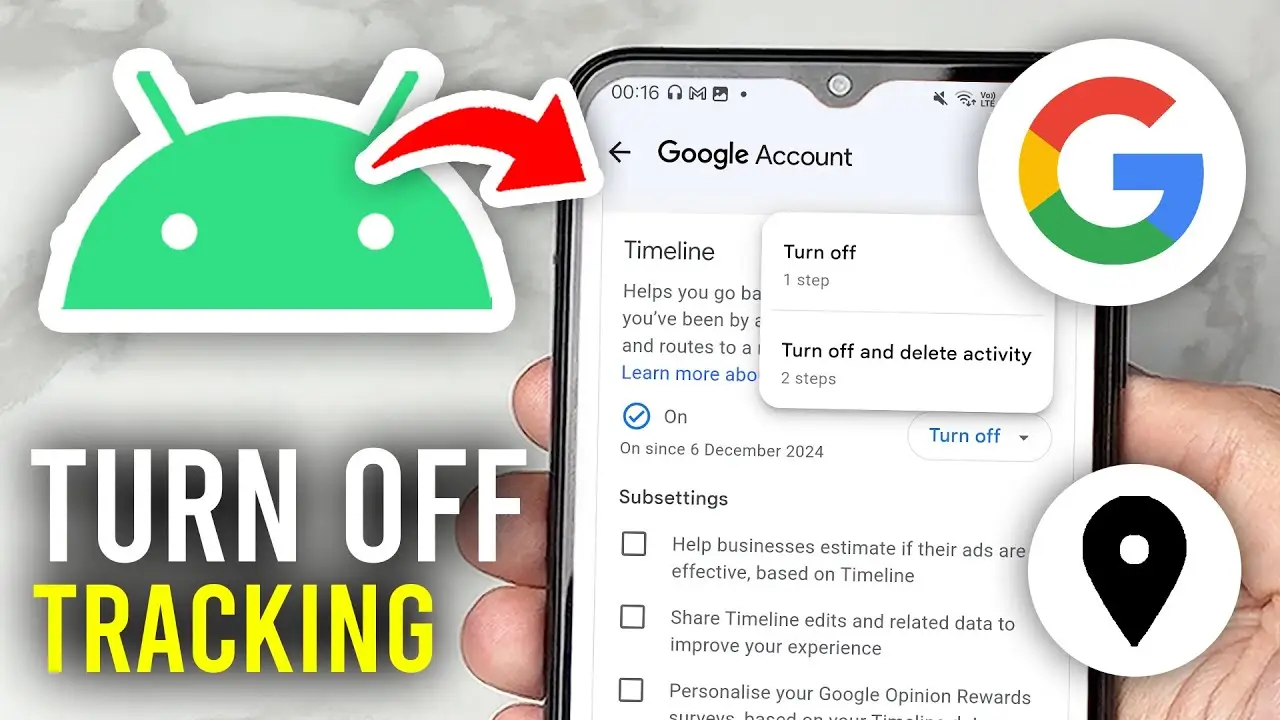
- Turn Off Google Maps Timeline
- Delete Your Existing Google Location History
- Turn Off Google Location Sharing
- Review Location Permissions for Apps
- Check Google Search and Maps Activity
- Turn Off Location on Your Device
- Does Turning Off Timeline Stop All Google Location Tracking?
- What Happens When You Delete Your Location Data?
- How to Reduce Google Location Tracking Without Turning Everything Off
- Frequently Asked Questions
- Final Takeaway
Does Google Track Your Location?
Google can collect or store location-related information when you use its services, depending on your account settings, device settings, and the particular Google product you are using.
One of the most important settings is Google Maps Timeline. When Timeline is enabled, Google says your device can regularly save precise location information to Timeline, including when Google apps are not being used. Timeline is currently off by default and must be enabled by the user.
However, turning off Timeline does not necessarily eliminate every form of location-related information associated with your Google activity.
Google explains that other settings, including Search Services History and Web & App Activity, can still involve location information such as your general area or IP address when you use Google services.
That means stopping Google location tracking is not necessarily a single-button process.
You may need to review several different settings.
If you want to understand the bigger picture first, see our guide to [What Does Google Know About You? Complete Google Privacy Guide].
Why Does Google Collect Location Data?
Location information can make Google services more useful.
For example, location can help Google Maps provide directions, show nearby businesses, provide location-based recommendations, and improve the relevance of search results.
Google Maps also stores certain activity when Search Services History is enabled. This can include searches in Maps, directions, places you view, shared Maps links, and calls made from Maps.
Location information can also come from different sources.
Google says location may be estimated using signals including:
- GPS
- Wi-Fi networks
- Mobile networks
- Device sensors
- General area information
- IP address information
The exact information available depends on the service and settings involved.
How to Stop Google From Saving Your Location
There are several steps you can take to reduce the amount of location information Google saves.
The most important are:
- Turn off Google Maps Timeline if you do not want it recording your visits and routes.
- Delete existing Timeline data.
- Review Google Location Sharing.
- Review location permissions for apps.
- Check Search Services History and Web & App Activity.
- Review your Google Account activity regularly.
- Disable device location access for apps that do not need it.
You do not necessarily have to disable every location feature. You can choose which services are allowed to use location based on how much functionality you want to retain.
Turn Off Google Maps Timeline
Google Maps Timeline creates a personal record of places you have visited and routes you have taken.
When Timeline is enabled, Google says precise device location can regularly be saved to the device even when Google apps are not being used. You can also optionally create an encrypted backup of Timeline data on Google’s servers.
To review Timeline:
- Open Google Maps.
- Tap your profile picture or initial.
- Open Your Timeline.
- Go to the location and privacy settings.
- Review whether Timeline is enabled.
- Turn it off if you do not want your device saving location data to Timeline.
Google’s current Timeline system is increasingly device-based, so the exact options you see can depend on your device and Google Maps version.
For a deeper explanation, read [Google Maps Location History: What Google Knows About Where You Go].
Delete Your Existing Google Location History
Turning off Timeline does not automatically mean that every previously stored location record disappears.
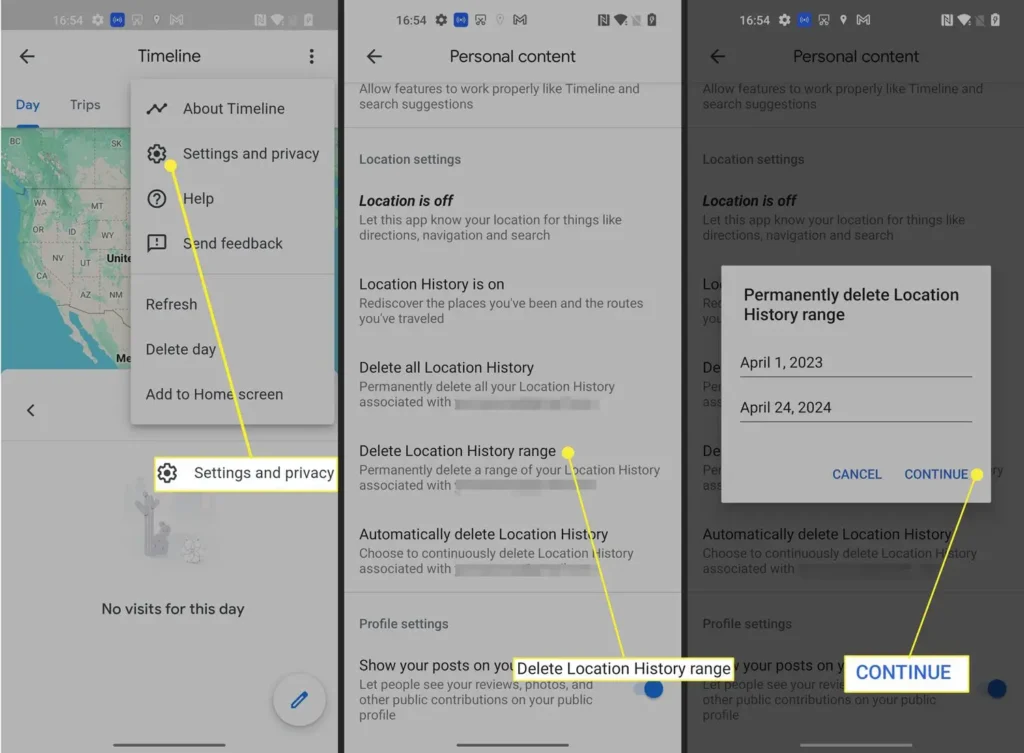
Google says you can review, edit, and delete Timeline information. You can delete individual visits and routes or delete location information more broadly through the available Timeline controls.
This distinction is important:
Turning off future collection and deleting previously stored information are separate actions.
If you are performing a privacy cleanup, review the existing Timeline information after changing the setting.
Google also notes that location information can exist outside Timeline when other Google services and activity settings are enabled.
Turn Off Google Location Sharing
Google Maps has another feature that is easy to confuse with Timeline: Location Sharing.
Location Sharing allows you to share your real-time location with people you choose.
Google says people you share your location with may be able to see information including your name, profile picture, real-time location and battery status. Depending on the sharing configuration, they may also see information about your recent location or travel.
Importantly, Location Sharing can work even when Timeline is turned off.
To review it:
- Open Google Maps.
- Tap your profile picture or initial.
- Select Location sharing.
- Review the people currently receiving your location.
- Stop sharing with anyone who no longer needs access.
This is especially important if you previously shared your location temporarily and forgot that the sharing permission remained active.
Review Location Permissions for Apps
Google location privacy is not limited to Google itself.
Apps installed on your phone may also request access to your device location.
Review the location permission for every app that has access.
Ask yourself:
- Does this app actually need my location?
- Does it need precise location?
- Does it need location access all the time?
- Would access only while using the app be enough?
- Is this an app I still use?
Google provides controls that allow users to decide which apps can access device location and when they can access it.
For many apps, changing location access from continuous access to only while using the app can reduce unnecessary background access without completely disabling location functionality.
Check Google Search and Maps Activity
One of the biggest mistakes people make is assuming that Google Maps Timeline is the only place where location-related information can be stored.
It is not.
Google says Search Services History can save activity across services including Search, Maps, Shopping, Flights, Hotels, Translate and News when the feature is enabled. Associated information can include location-related data.
Web & App Activity can also contain location information associated with your use of Google services.
This means you should review your broader Google Account activity rather than checking only Google Maps Timeline.
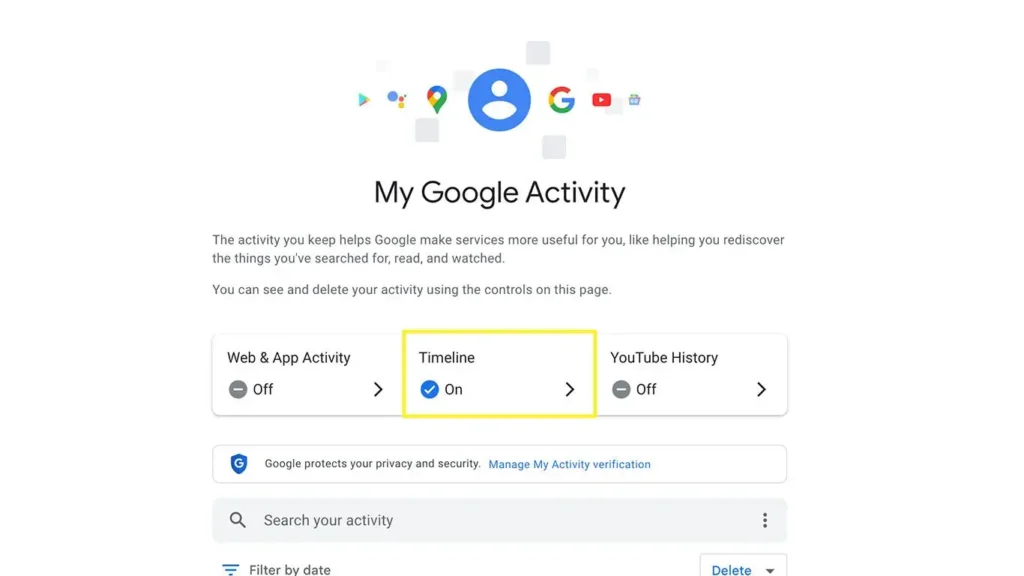
Google’s My Activity area provides a central place to review and manage much of the activity associated with your account.
This connects directly to our earlier guide, [How Long Does Google Keep Your Search History?], because search and location-related data can be controlled through different activity settings.
Turn Off Location on Your Device
You can also control location at the device level.
If you do not want an app to access your device location, review the operating system’s location permissions and disable access for that app.
However, completely disabling device location can affect useful services such as:
- Navigation
- Local search
- Ride-hailing
- Weather applications
- Emergency features
- Find-device services
- Location-based recommendations
For this reason, completely disabling location may be unnecessary for many people.
A more targeted approach is to restrict location access to apps that genuinely need it.
Does Turning Off Timeline Stop All Google Location Tracking?
No.
This is one of the most important points to understand.
Google explicitly states that turning Timeline off does not change other location services such as Google Location Services, Location Sharing and Find Hub.
Google also says that if Search Services History or Web & App Activity remains enabled, your Google Account may still save location-related information connected to your use of other Google websites, apps and services.
So there is no single switch that necessarily means:
Google can never receive or process any information related to my location.
Instead, Google location information can be connected to multiple products, settings and device functions.
This is why a privacy audit should examine the entire Google Account rather than one setting.
What Happens When You Delete Your Location Data?
Deleting information removes the data covered by the particular deletion action, but users should understand that Google services can store different categories of information in different places.
For example, Timeline data is managed separately from some activity stored through Google services.
Google says some information may be retained for limited purposes such as business or legal requirements.
Therefore, deleting Timeline should not automatically be interpreted as deleting every piece of location-related information that Google may have processed.
This distinction is important when evaluating privacy controls.
How to Reduce Google Location Tracking Without Turning Everything Off
You do not have to choose between using Google Maps normally and having no privacy controls.
A practical privacy setup could look like this:
1. Review Timeline
If you do not need a historical map of everywhere you have been, consider keeping Timeline disabled.
2. Review Location Sharing
Check who can currently see your real-time location.
3. Review app permissions
Remove location access from apps that do not need it.
4. Check Search Services History
Review whether you want Google saving your activity across Search and Maps.
5. Review Web & App Activity
Check whether this setting is saving activity associated with your Google services.
6. Delete old information
If you have accumulated years of activity, review what is stored and delete information you no longer want associated with your account.
7. Review the settings periodically
Privacy settings change, and Google is currently rolling out updates to its Search services history controls. The settings shown in your account may therefore differ from older instructions found online.
Frequently Asked Questions
Can Google track my location if Timeline is turned off?
Turning off Timeline stops your device from saving location to Timeline, but it does not disable every other Google location service. Other Google services and account activity settings can still involve location-related information.
Does deleting Google Maps Timeline delete all my location data?
No. Google states that other services and activity settings can retain location-related information separately from Timeline.
Does Google Maps track my location when I am not using the app?
If Timeline is enabled, Google says precise device location can regularly be saved even when Google apps are not being used.
Can people see my location through Google Maps?
Yes, if you have voluntarily enabled Location Sharing with them. You can review and stop location sharing through Google Maps.
Does turning off my phone’s location stop Google from knowing where I am?
It can restrict device-based location access, but it does not necessarily eliminate every type of location-related information that can be associated with online activity. For example, Google says activity can include general area and IP address information.
Is Google Maps Timeline enabled by default?
Google currently states that Timeline is off by default and requires the user to opt in.
Final Takeaway
Stopping Google from tracking or storing location information is not simply a matter of switching off one setting.
Timeline, Location Sharing, Search Services History, Web & App Activity, device location and individual app permissions can all play different roles.
The most effective approach is to review these controls individually and decide which location features you actually need.
If you use Google every day, this is part of a broader privacy audit. Start with [What Does Google Know About You? Complete Google Privacy Guide], then review our guides on [Google Search tracking], [Google Search History retention], [Incognito Mode], [Chrome privacy], and [Google Maps Location History].
Official Sources
- Google Account Help: Manage your Timeline data.
- Google Maps Help: Manage your Google Maps Timeline.
- Google Account Help: Manage Location Sharing settings.
- Google Account Help: Find, control and delete information in your Google Account.
- Google Search Help: Find and manage Search Services History.














Leave a Reply